This guide explains how to configure a Septentrio GNSS receiver to stream SBF (Septentrio Binary Format) data to GP-Cloud using the NTRIP protocol.
What this integration does
In this setup, the GNSS receiver sends binary SBF data to GP-Cloud via an NTRIP connection. SBF is a binary data format where information is organized into structured blocks (SBF blocks). NTRIP is a protocol used for streaming GNSS data over the Internet. It is based on HTTP and allows continuous data transmission between devices.
In this workflow:
- The receiver acts as an NTRIP Server (SOURCE) and pushes data to a caster
- GP-Cloud acts as an NTRIP Client and receives the stream
- The stream is identified using a mount point
Mount points must be unique and are usually protected with username and password authentication.
Requirements and information to collect before configuration
Before starting the configuration, make sure you have the following:
- Caster host and port for your GP-Cloud environment (for example, gp-cloud.io and port 2101). Port 2101 is commonly used as the default NTRIP port.
- Username, password, and mount point to identify and authenticate the stream.
- Network reachability from the receiver to the Internet:
- If the receiver reaches the Internet via Ethernet/Wi‑Fi, confirm DNS/gateway settings are correct for your site.
- If the receiver depends on USB-connected networking, note that mosaic-class devices are not necessarily internet-enabled over USB by default; you may need to enable “Outgoing Internet Access Over USB” and configure Internet sharing/bridging on the connected computer.
Receiver Configuration (Septentrio Web Interface)
These steps follow the receiver’s web interface workflow with the vendor’s standard “wizard” model for configuring NMEA/SBF outputs.
1. Open the SBF output wizard
- Log into the receiver’s web interface.
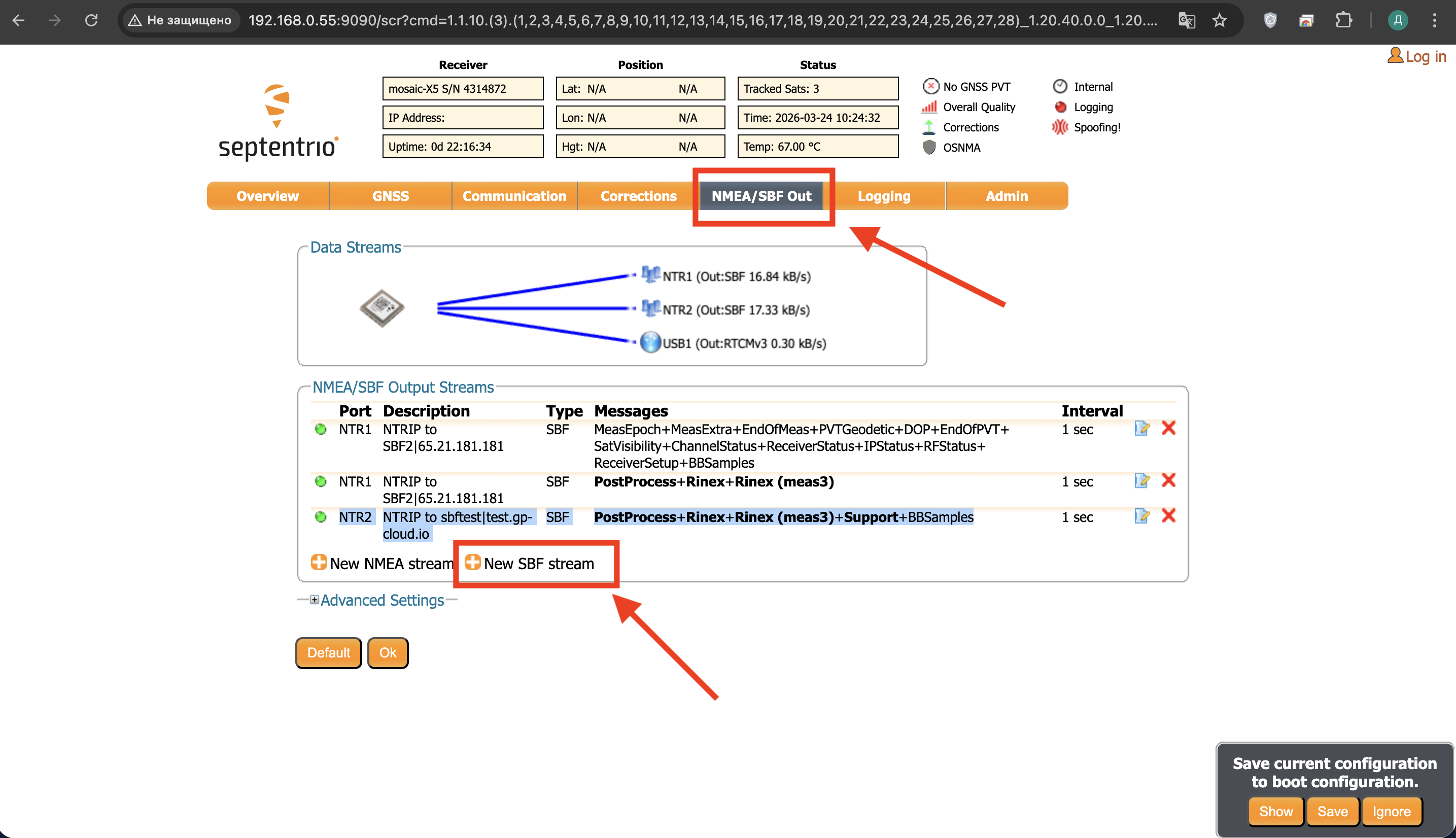
- Navigate to NMEA/SBF Out.
- Select New SBF stream (this starts the guided configuration flow).
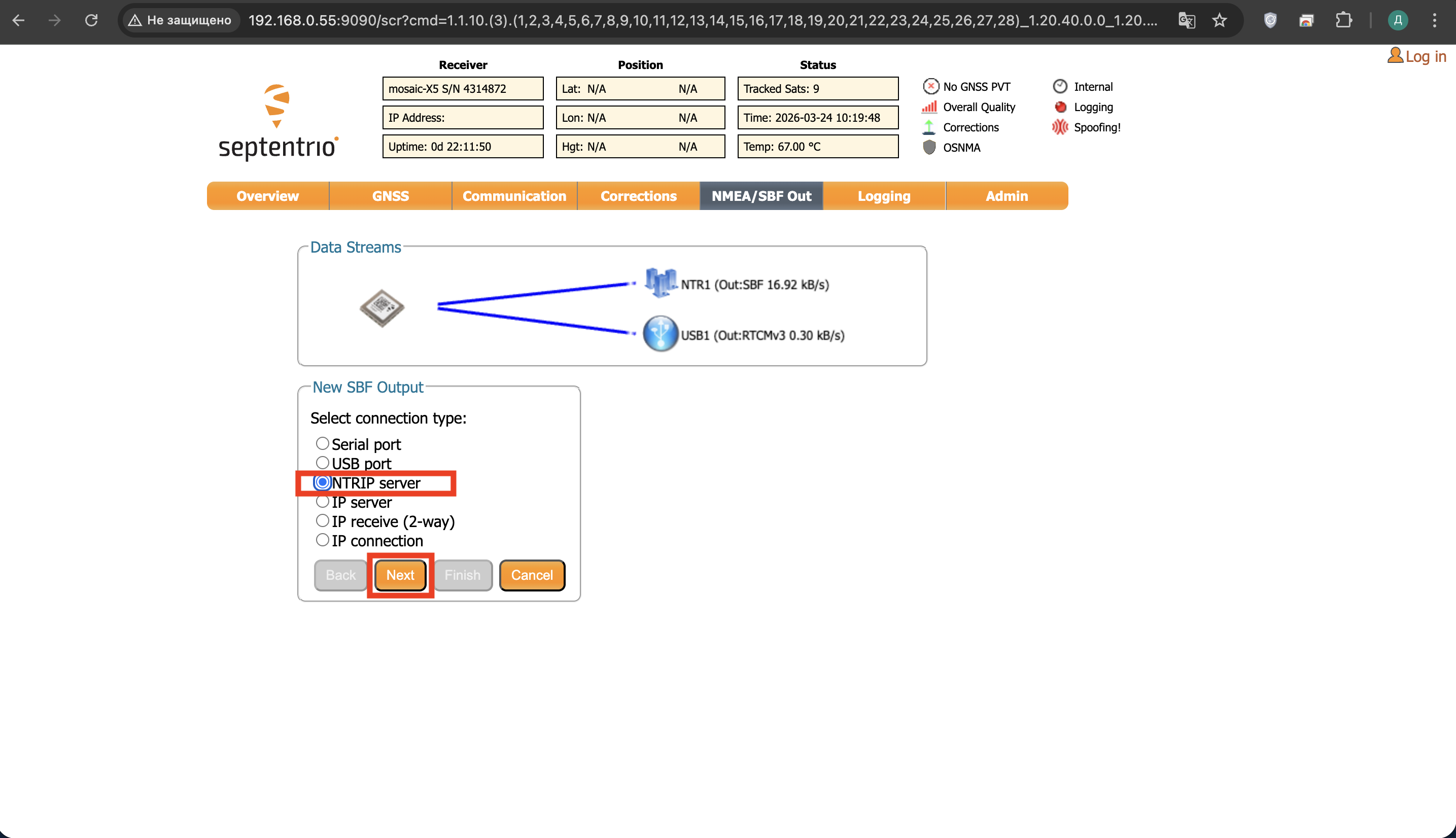
2. Select Connection Type
Select NTRIP Server as the connection type:
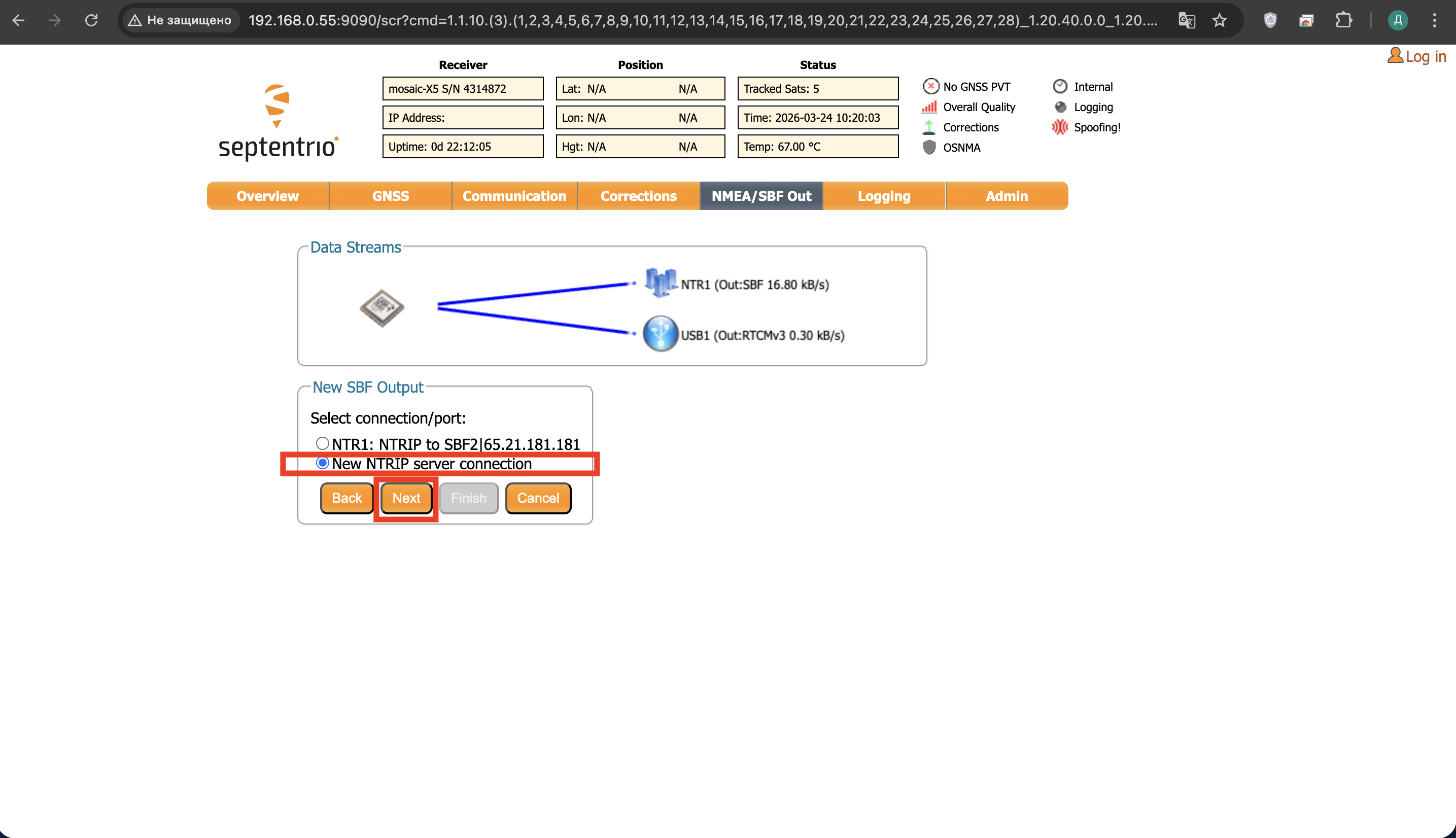
Then choose New NTRIP server connection.
3. Configure NTRIP Settings
At a minimum, the NTRIP server mode parameters are:
- Internal caster: disable
- Host: GP-Cloud caster hostname (or IP)
- Port: typically 2101 in NTRIP examples and documentation
- Username / Password: credentials for Basic Authentication (if used by the caster)
- Mount point: the stream name clients will select
- TLS: enable only if your caster requires it or you need encrypted transport
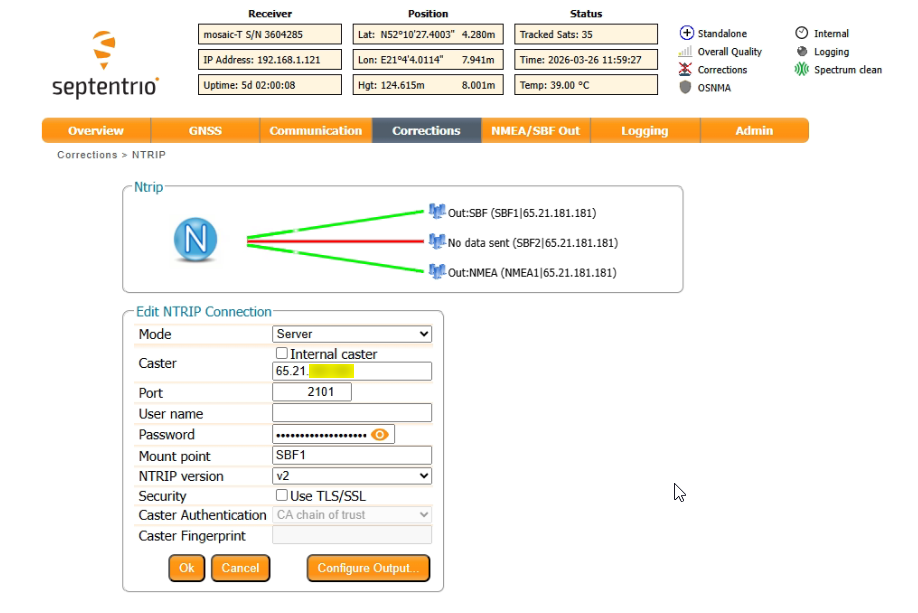
Security note: Basic Authentication is not encryption; if credentials or payload confidentiality matters, use TLS where available. NTRIP documentation explicitly frames protection around HTTP Basic Authentication
semantics.
4. Configure SBF Output
Set the output interval:
- Interval: 1 second
Enable the following message groups:
- MeasEpoch
- MeasExtra
- EndOfMeas
- PVTGeodetic
- DOP
- EndOfPVT
- SatVisibility
- ChannelStatus
- ReceiverStatus
- IPStatus
- RFStatus
- ReceiverSetup
- BBSamples
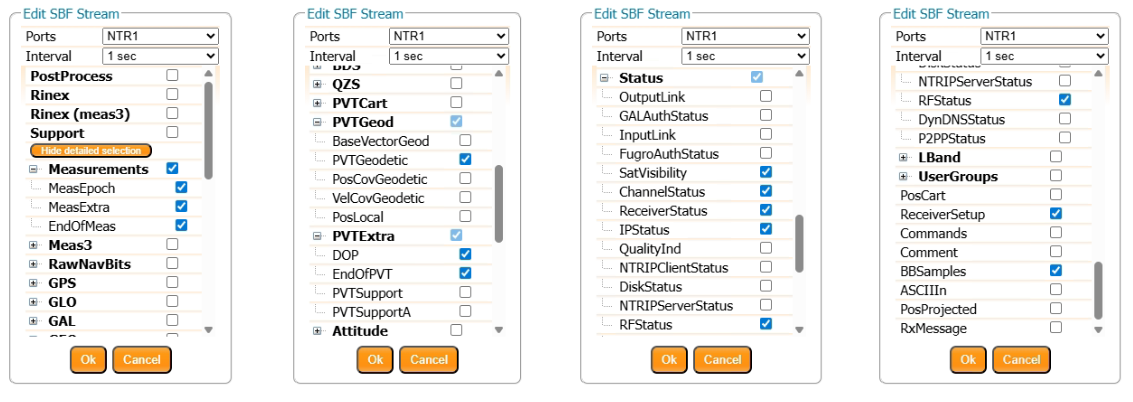
BBSamples are required for spectrum analysis in GP-Cloud. However, enabling this option significantly increases the volume of transmitted data. Make sure that your network connection can handle the additional bandwidth before using it in a production environment.
Configuring Mount Point in GP-Cloud
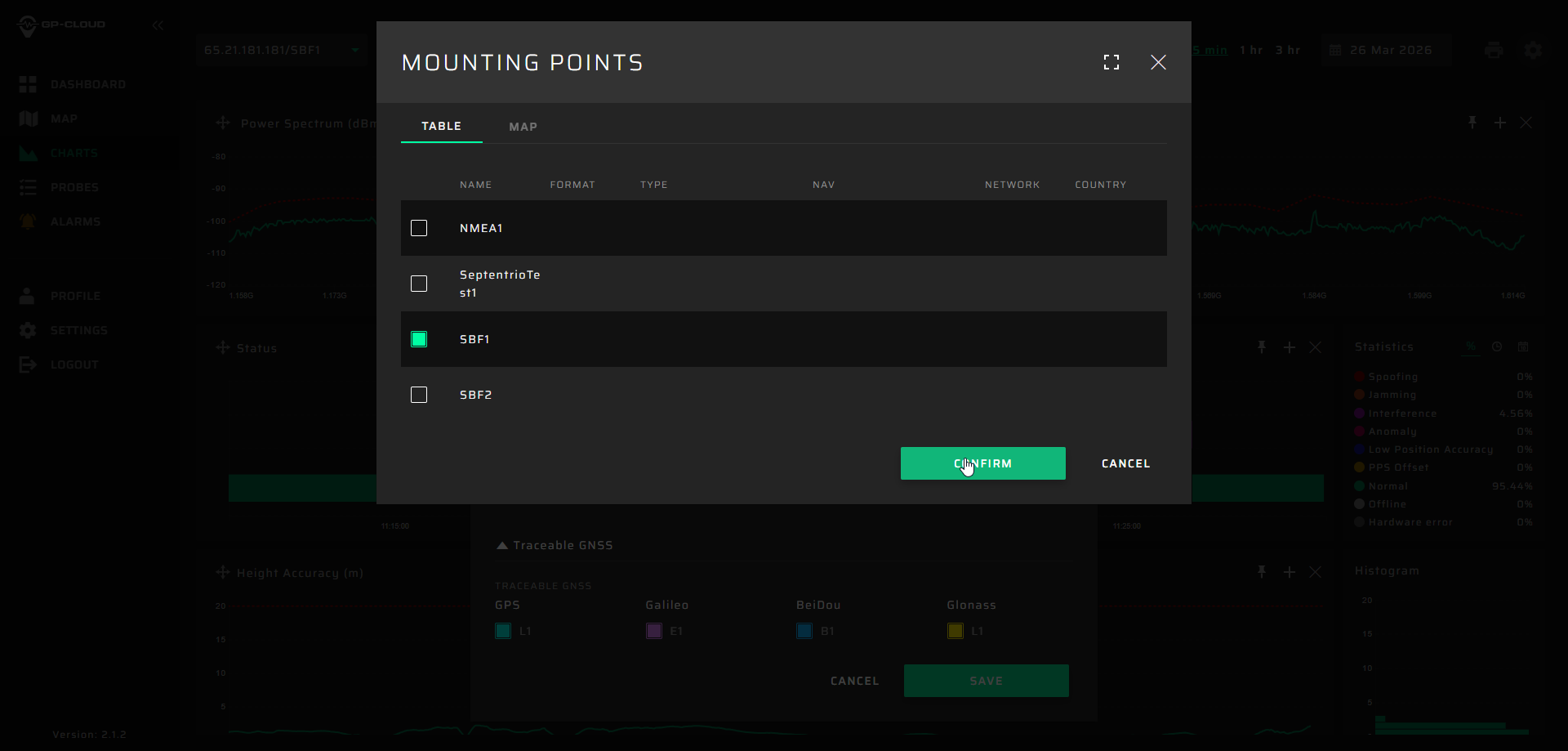
To configure or modify the NTRIP connection, follow these steps:
- Open the Charts section in the left-side menu
- Select the required SBF stream from the dropdown at the top (e.g., IP/SBF1)
- Click the settings icon in the top-right corner
- In the settings window, click Change in the NTRIP Connection section
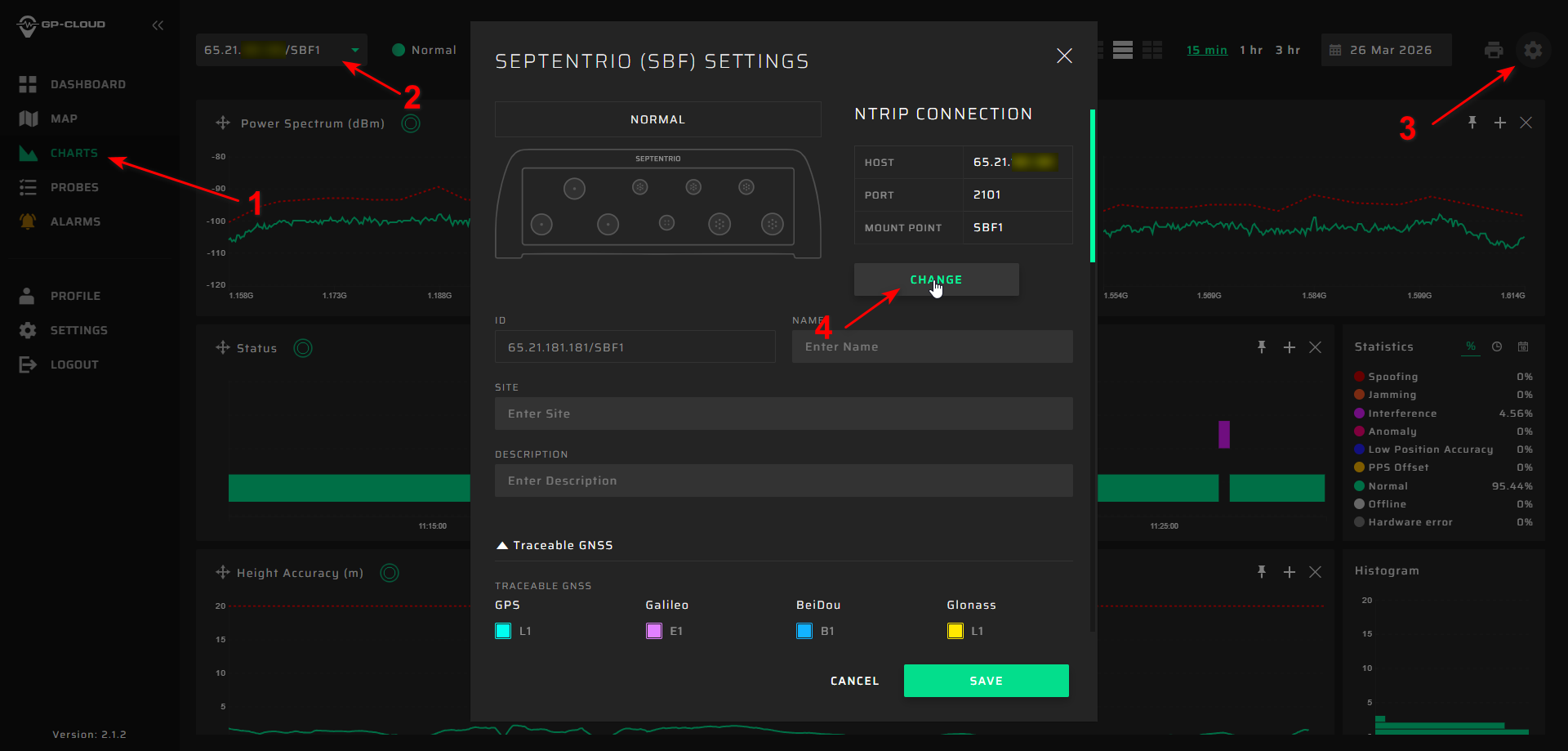
In the configuration window:
- Enter the Caster Host (IP address or domain of your receiver/caster)
- Set the Caster Port (default: 2101)
- Enter the Username and Password (must match the receiver configuration)
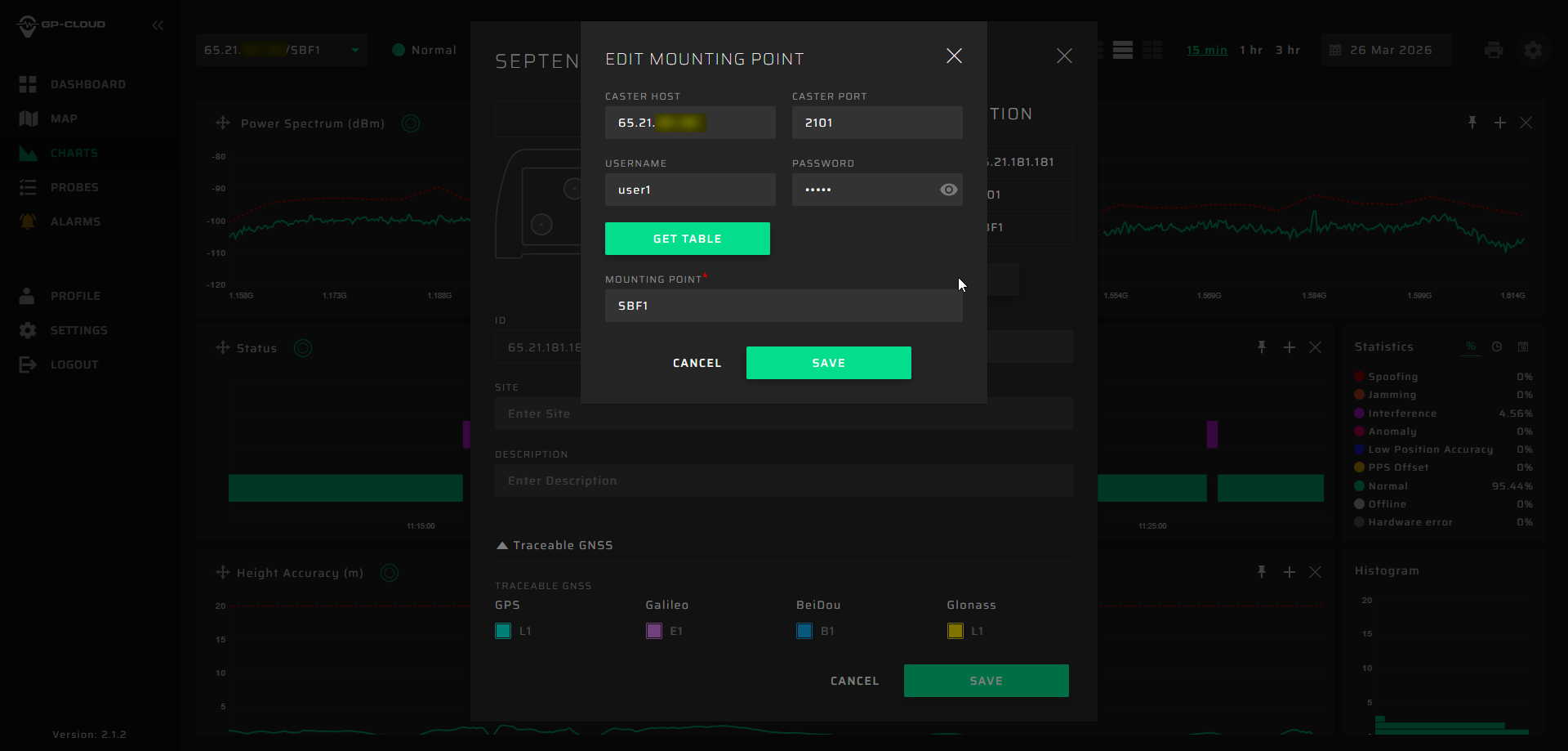
You can also click Get Table to retrieve the list of available mount points from the caster.
Verifying Data Reception in GP-Cloud
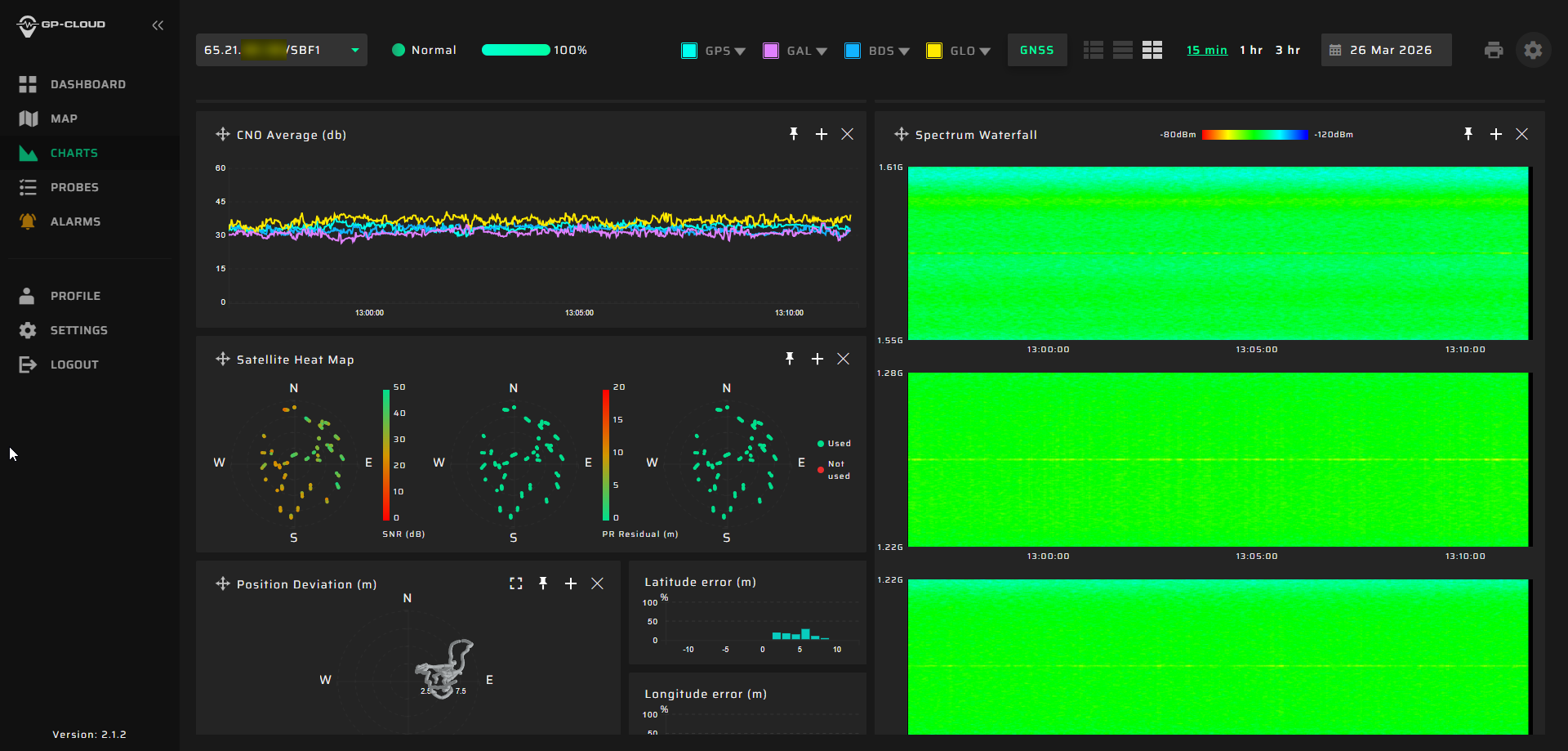
After completing the configuration, verify that the data stream is successfully received in GP-Cloud.
The connection is considered operational if:
- The spectrum waterfall is visible and continuously updating
- GNSS-related charts (C/N₀, satellite map, positioning data) are populated
- No empty panels are present in the dashboard
If all charts are updating in real time, the SBF stream is correctly configured and transmitted to GP-Cloud.
Additional Configuration in GP-Cloud
After establishing the connection and confirming data reception, perform the following configuration steps to ensure proper analysis and detection performance.
1. Select traceable GNSS constellations
Enable the required GNSS systems and frequency bands (e.g., GPS L1, Galileo E1, BeiDou B1, GLONASS L1). This defines which signals will be used for monitoring and analysis.
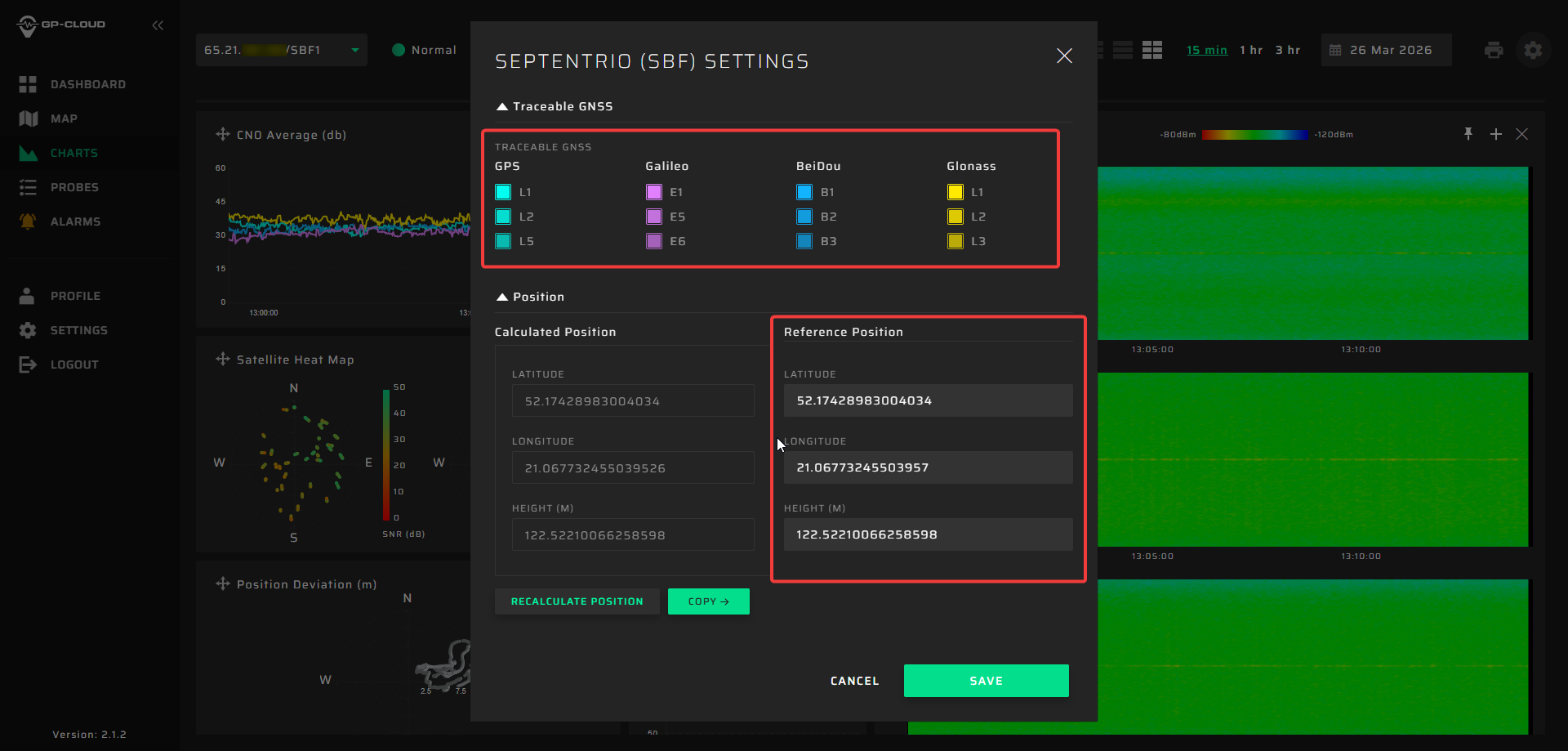
3. Set reference position
Define the reference (true) position of the receiver. This is required for positioning error estimation. You can either enter the coordinates manually or copy them from the calculated position.
4. Reset detection algorithms
After initial setup, reset the calibration of detection algorithms using the Reset Calibration button. This ensures that the system adapts correctly to the current RF environment.
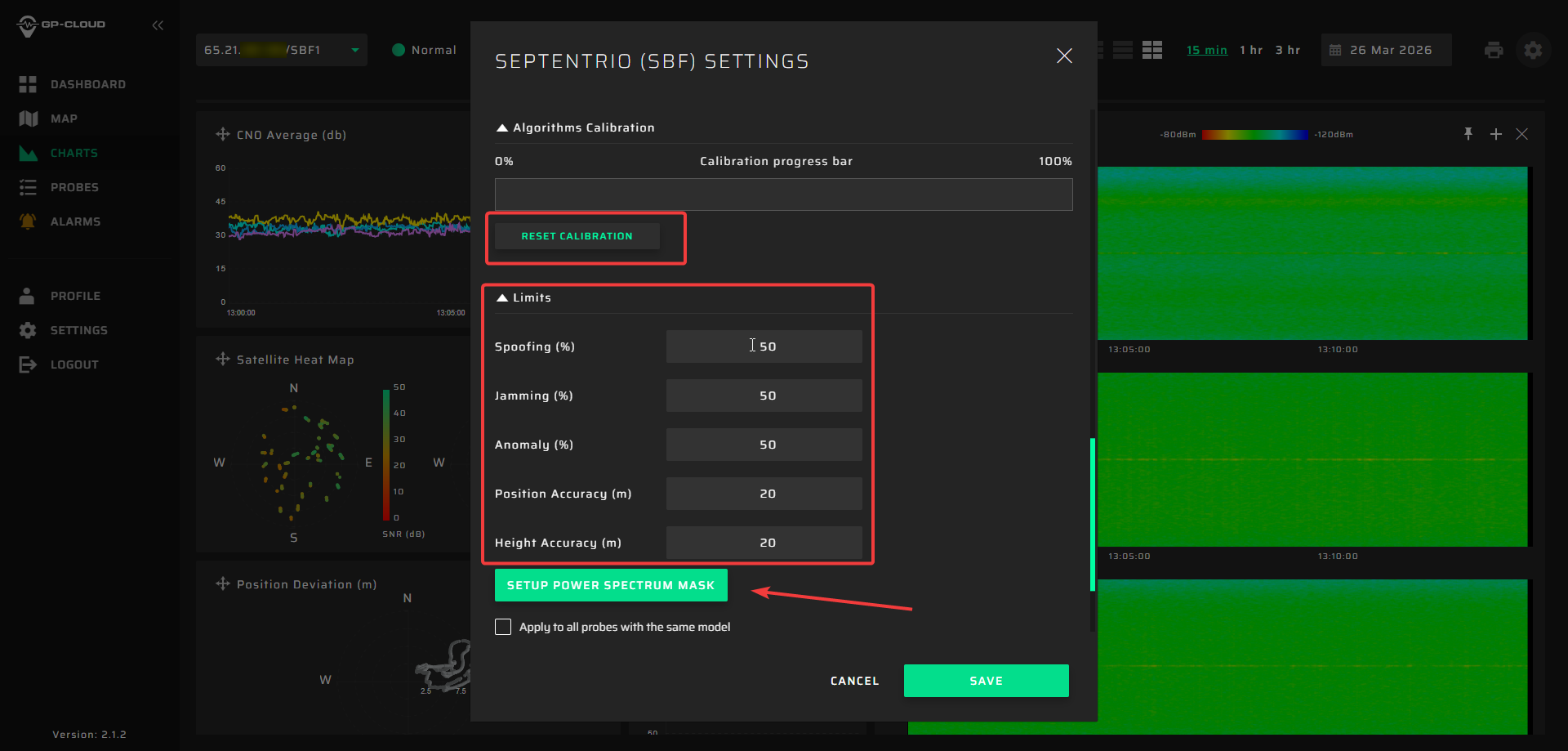
5. Configure detection thresholds
Set threshold values for key metrics such as:
- Spoofing detection level
- Jamming detection level
- Anomaly detection level
- Position accuracy limits
- Height accuracy limits
These parameters define when the system will trigger alarms.
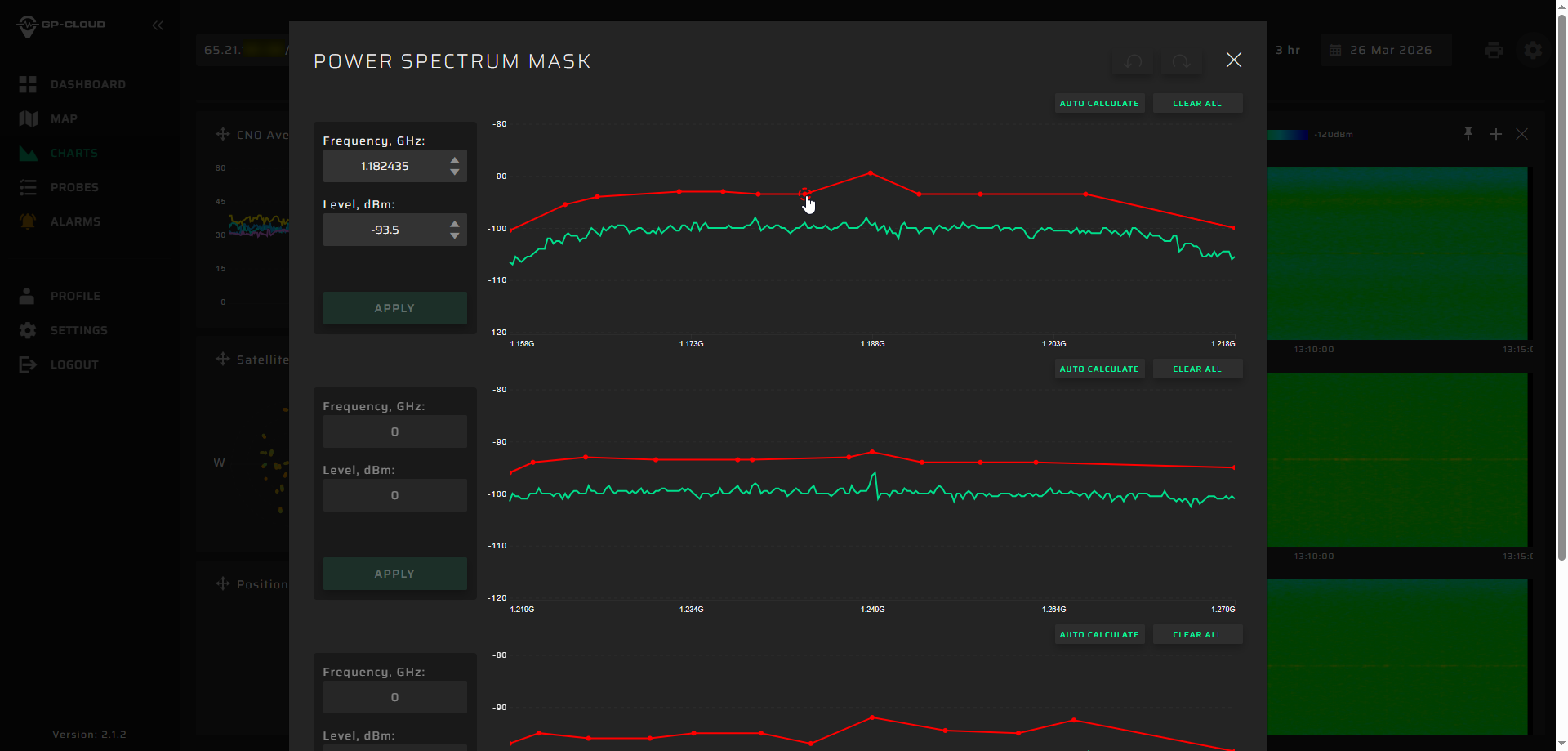
6. Configure power spectrum mask
Set up the spectral mask to define acceptable RF power levels across the frequency band.